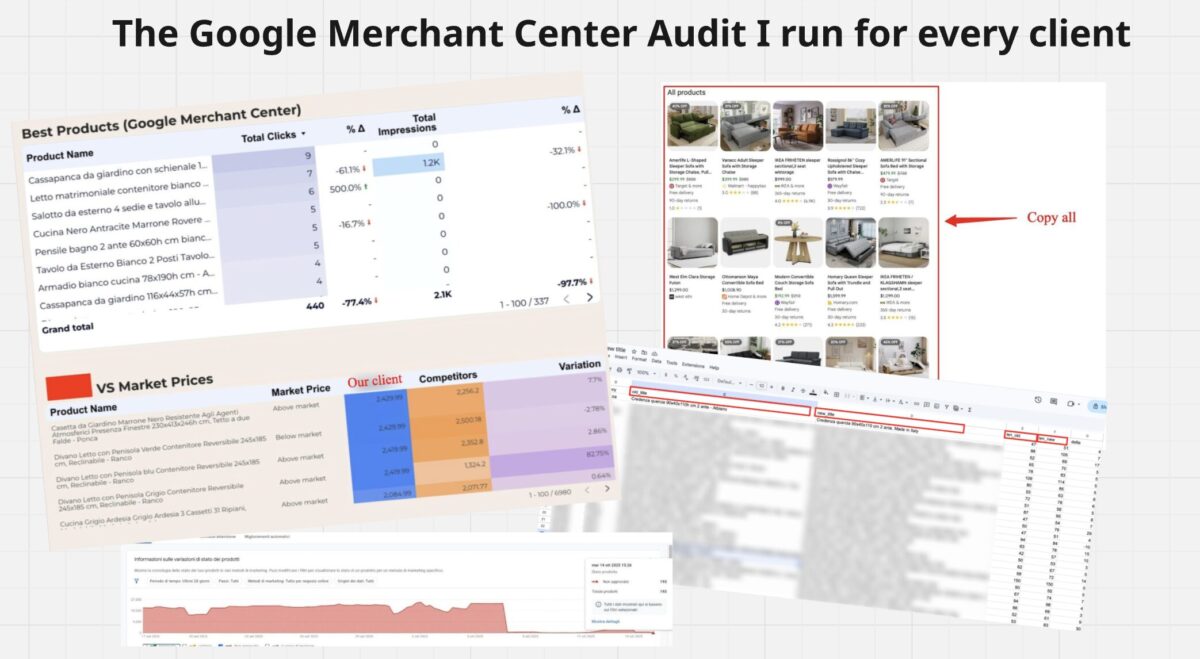
The Google Merchant Center Audit I run for every client
Many ecommerces neglected the Google Merchant Center feed.
In my experience, if you optimize this well, it can bring a significant share of revenue to an ecommerce store, and it helps both SEO and paid ads.
Often it’s necessary to add and modify small things, the details matter.
In this practical guide you’ll learn:
- How to audit your Google Merchant Center
- How to report on Google Merchant Center
- Practical product health checklist
THE TITLE AUDIT PROCESS
In the first line, I see what are my competitors for categories and products.
I choose the best 20-30 products from my ecommerce client’s catalog and go to Google SERP. If possible, change the category, don’t limit this exercise to just one or two categories.
I type the main product keyword and I study the situation for each 20-30 SERPs.
This is work in detail, don’t work with automation or similar.
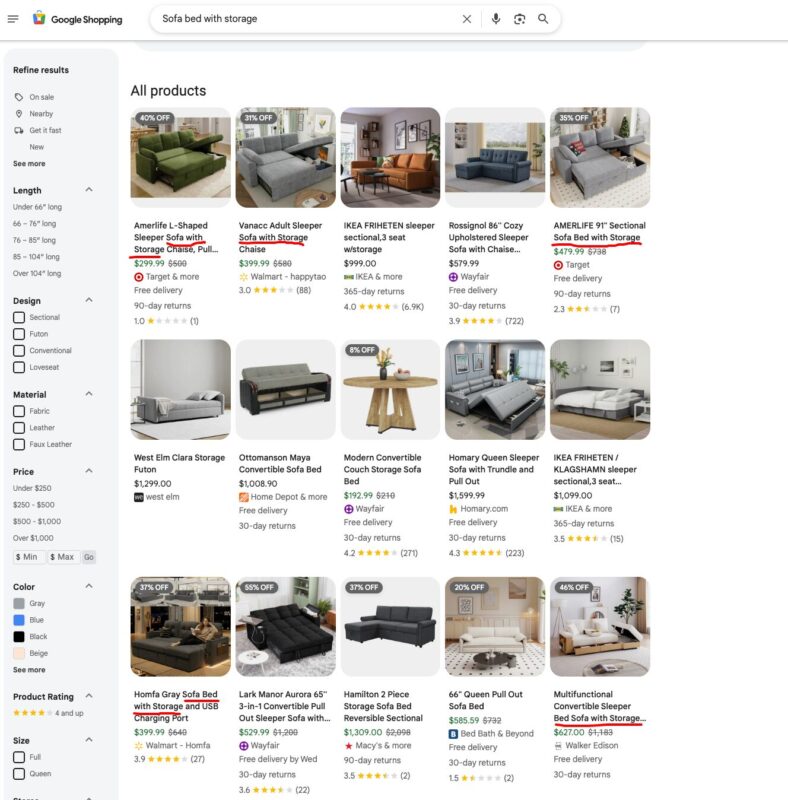
I type my main product keyword into the Google Shopping SERP and here an example of Google shopping SERP for the keyword “sofa bed with storage”.
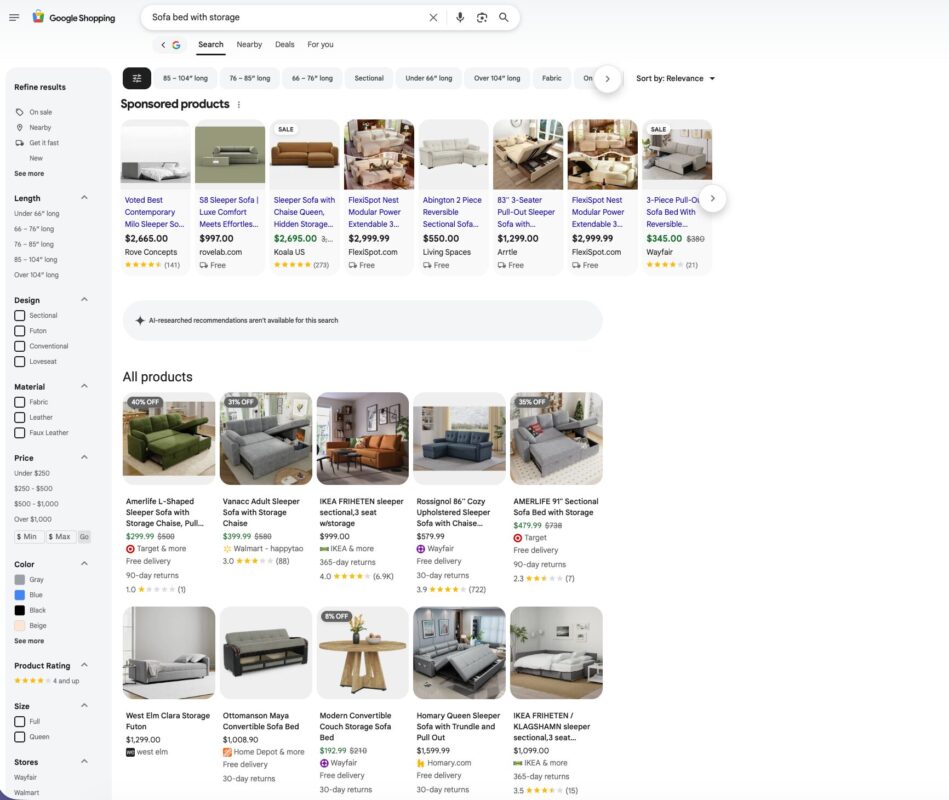
Imagine if your product compete for the keyword “sofa bed with storage”.
In SERP I see many competitors that have this keyword or alternative keyword in the product title name.
But many competitors don’t have it, so it’s a huge opportunity.
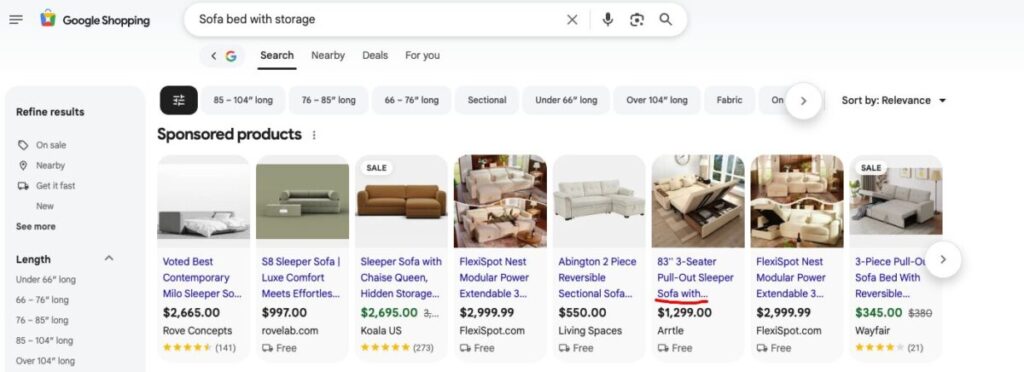
Also check the Sponsored Products section, you can find interesting insights there.
Now, for each 20-30 google shopping SERPs you need to copy at least the first grids of products.
Copy all titles, reviews, etc.
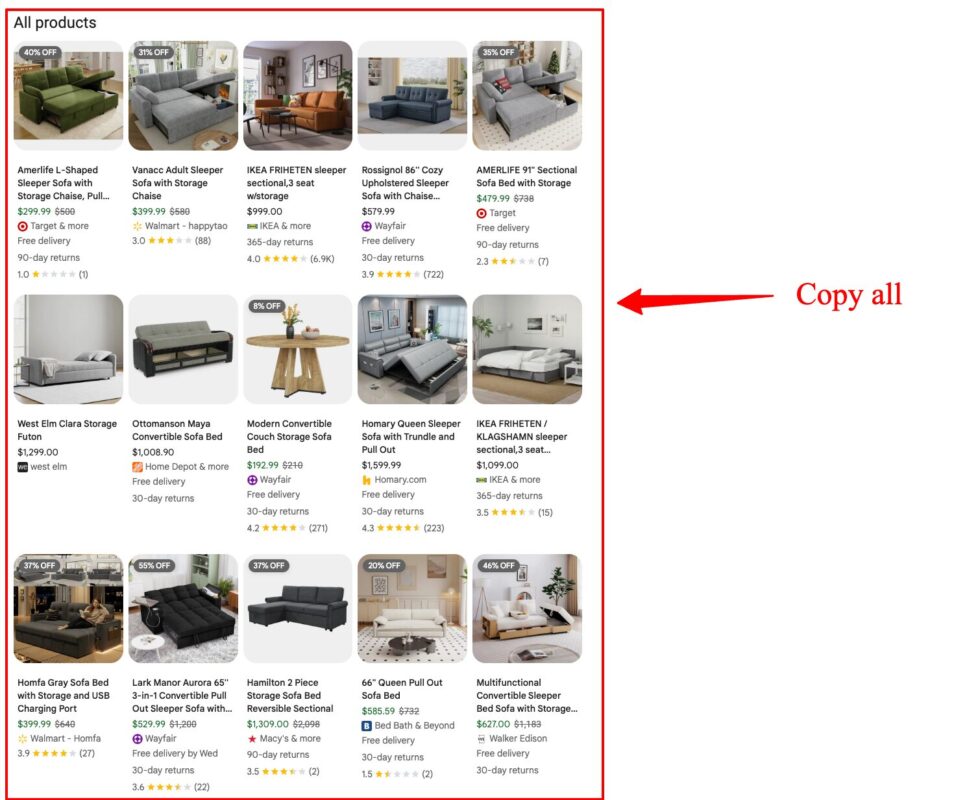
Then, paste in Claude and you can use a prompt for Claude such as:
I’ll provide you with some Google Shopping SERPs. I’d like to know:
- Which competitors appear multiple times?
- What title patterns work best? Find 1-2 examples.
- I’ve attached a list of our current titles in the feed. What should we change?
- Which keywords and related keywords are they using?
- Any other suggestions?
Main keyword: Sofa bed with storage
Example of output:
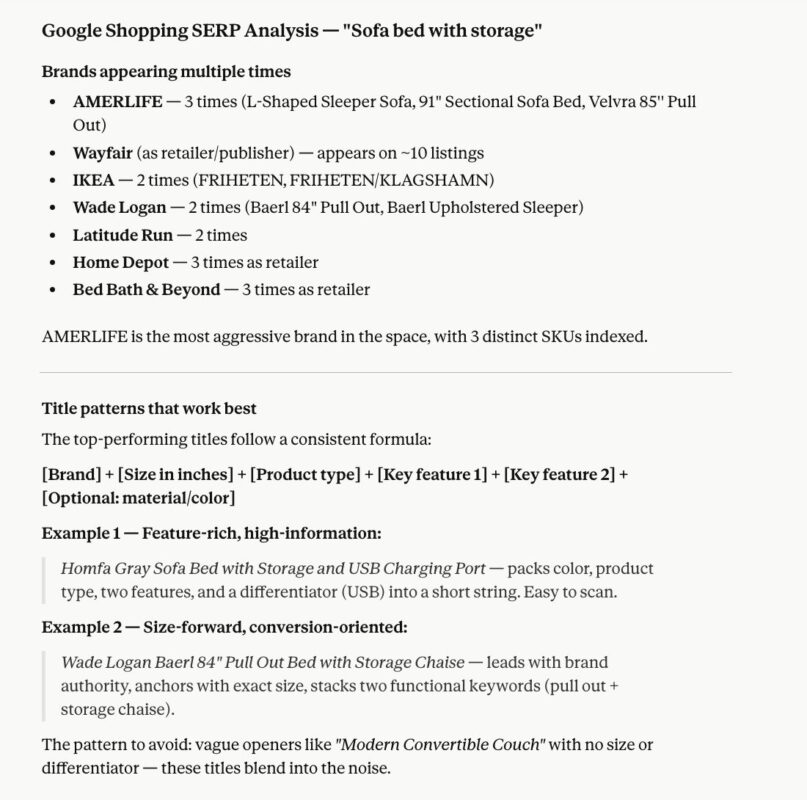
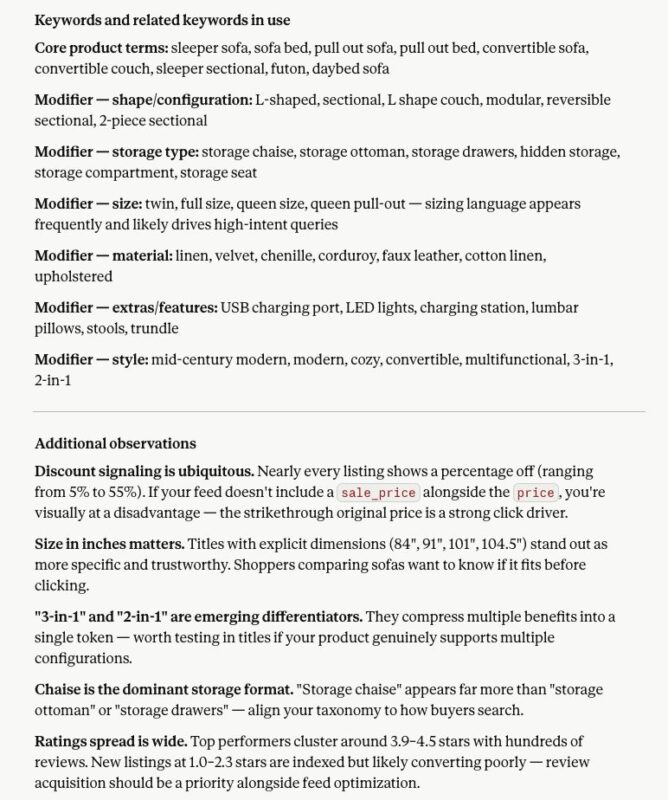
Obviously, this is just an example; you can verify it against a sample of real data.
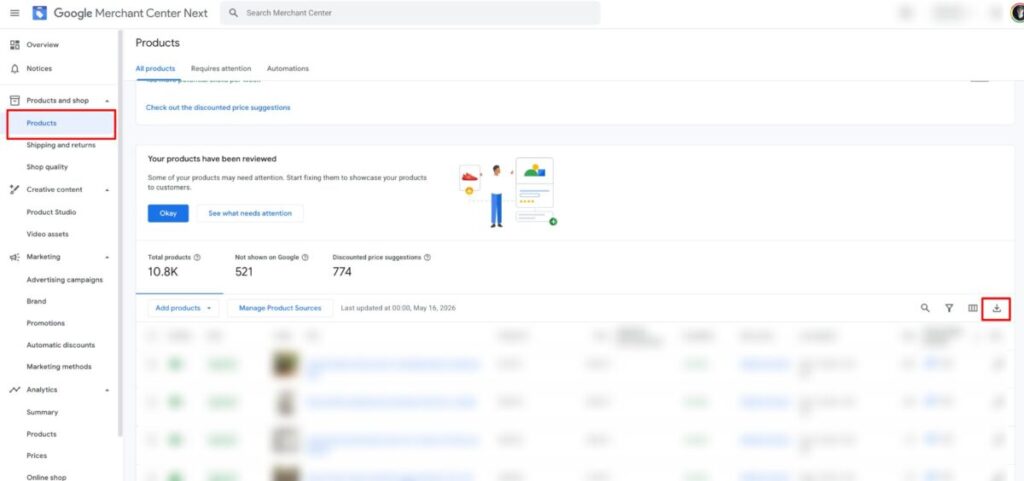
PS. Download your product feed in GMC for better output and insert them in the Claude input. Here is the following process:
- Go in Google Merchant Center > Products > Download
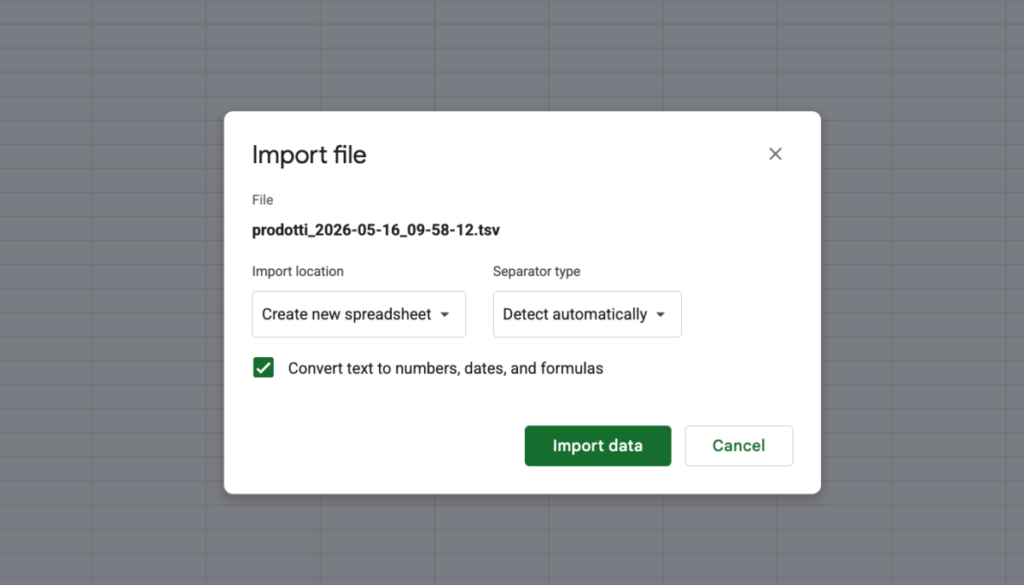
- Go in Google Sheets > Import > Download the GMC export > Import data
- You can see all products feed.
So, now you have more information and have probably identified 2-3 title patterns to use.
Take your time to see what competitors are missing and what you can add or remove from your product titles in the GMC feed.
You can ask different questions for example.
Pricing & discounts
- Does a higher discount percentage (e.g. 40%+ off) correlate with more visibility or better CTR?
- Is there a sweet spot price range that dominates the SERP?
- Do artificially inflated “original prices” actually work, or does Google flag them?
Reviews & ratings
- Does a higher rating guarantee better placement, or do low-rated products still rank well?
- Do listings with very few reviews (1-7) get suppressed or just convert poorly?
- Does review velocity matter i.e. does getting 20 reviews fast outperform 100 reviews accumulated slowly?
Title optimization
- Does leading with brand name vs. size vs. product type affect CTR differently?
- Does including “queen” or “full” in the title capture mattress-adjacent searches?
- How does title length affect performance, is there a character count sweet spot in Shopping?
Product imagery
- Do lifestyle photos outperform white-background shots in this category?
- Does showing the sofa in both couch and bed mode in the first image help CTR?
Feed & categorization
- Is Google Product Taxonomy category affecting which queries trigger this product?
- Does having a supplemental feed with additional attributes (color, material, size) improve impression share?
Competitive positioning
- Why does AMERLIFE have 3 SKUs indexed, are they using different GTINs, or is it a catalog breadth strategy?
- Are IKEA listings winning on brand trust alone despite a higher price point?
Retailer vs. brand dynamics
- Do brand-direct listings (Amerlife, Joybird, West Elm) perform differently from marketplace listings (Walmart, Wayfair)?
- Does “free delivery” as a feed attribute visibly impact CTR in this category?
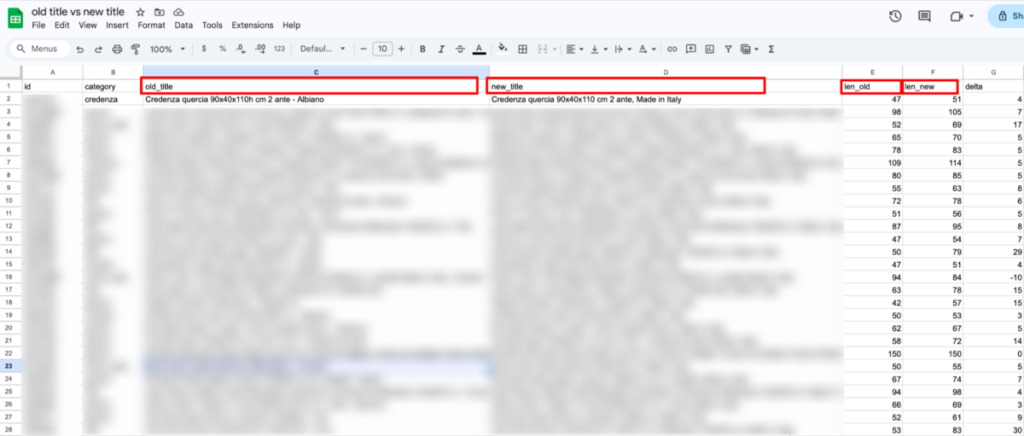
After this, you can produce your files about old title vs new title for your ecommerce or you can act via GMC.
It’s important to have this file for have a quick comparison about old vs new.
PAY ATTENTION: I’d like to draw your attention to an important point.
If you only modify the GMC feed (supplementary feed or transformation rules), there will be no impact on URLs, redirects, on-site SEO or campaigns. You can proceed without any concerns.
If you change the product name in the back-end system and the slug is regenerated as a result, then yes, 301 redirects are required; you’ll need to assess the impact on campaigns (URLs in ad groups), and this should be done with a migration plan, which I would avoid.
So, take your time because it could be risky.
To implement it all you have two solutions:
- Have old title vs new title, you can import the file with only new titles inside on the Google Merchant Center.
- You can also work with Attribute Rules, here you can add materials or other useful attributes.
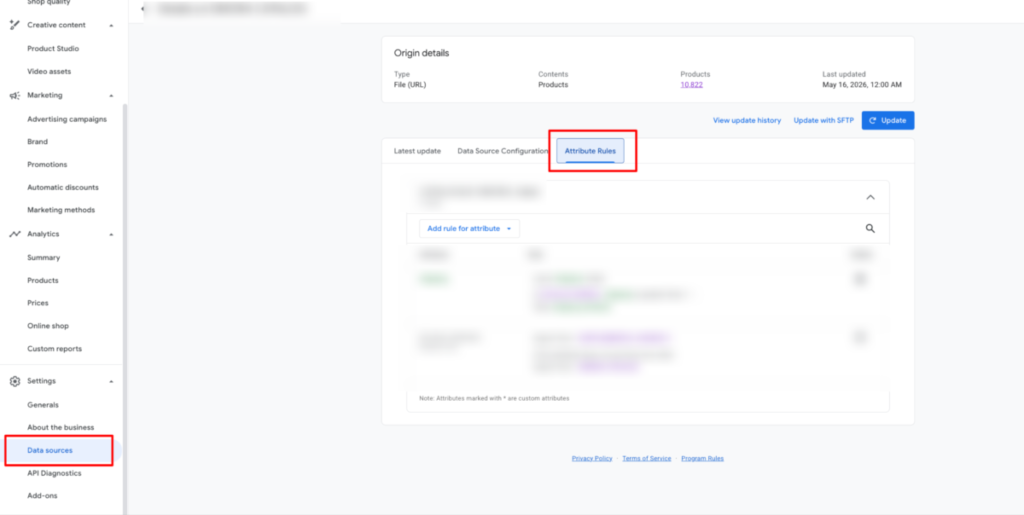
Feed and Data Source Management
If the Google Merchant Center feed is managed internally using a dynamic feed, any changes, categories, titles, attributes, must be applied to the source and should never be uploaded as a static supplementary feed to GMC.
Therefore, be careful not to upload anything directly to Merchant Center without the team’s approval; be sure to consult with them first.
An example of a titles audit on Google Shopping for my client
While working on a furniture ecommerce client, we ran a full audit and optimization of their Google Shopping product titles, nearly 10,000 products across dozens of categories.
Here is a breakdown of what we found, what we fixed, and what the data revealed.
How we approached the audit
Before touching anything, we compared the existing titles against what competitors were showing on the SERPs for the same product types.
The gap was clear: competitor titles were structured to match search intent, with material, room destination, and opening mechanism front and center.
Our client’s titles were structured around internal naming conventions, useful for the warehouse, invisible to Google.
Another gap we noticed was that competitors were using shorter titles, so we built titles with more specifications to stand out.
That analysis drove every decision below.
What we changed
Model names removed
This client had a proper name appended at the end of every title “- Albiano”, “- Gravere”, “- Priverno”. These names are meaningful internally. On Google Shopping, they occupy 10-15 characters that could hold a material, a color, or a room keyword.
We removed them from nearly 10,000 products.
Before: Blue double sofa bed 285x160cm – Priverno
After: Blue double sofa bed 285×160 cm
Dimension formatting normalized
Dimensions were written with “h” attached directly to the height value, a format that is non-standard and inconsistent across the catalog. We normalized everything to the correct format.
Before: Oak sideboard 90x40x110h cm 2 doors
After: Oak sideboard 90x40x110 cm 2 doors
Seat count added to sofa beds
Many sofa bed titles were missing the number of seats, a key purchase filter for users.
Where the information was reliably available in the feed, we added it.
Before: Compact grey sofa bed 180x95cm
After: Compact 2-seater grey sofa bed 180×95 cm
Before: White and green wooden sofa bed 220x84cm
After: White and green wooden 3-seater sofa bed 220×84 cm
Language correction on descriptive terms
Outdoor wardrobes were labeled with the English word “outdoor” on a catalog selling to Italian users. We corrected it to the local equivalent.
Before: Tall sand outdoor wardrobe 80x182h cm
After: Tall sand outdoor wardrobe 80×182 cm
What the data revealed
After the optimization, a title-length audit revealed a clear structural gap across the catalog.
These categories had the highest share of titles still too short to be competitive:
- Poufs – 98% short, material, and mechanism are missing on almost all
- TV stands – 98% short, material, and mechanism missing
- Armchairs – 81% short, color, dimensions, and mechanism missing
- Chest of drawers – 75% short
- Bedside tables – 73% short
- Wardrobes – 70% short
The categories with the highest volume and a significant gap:
- Sofa beds – 893 products, 55% short, material missing on 85%
- Sideboards – 613 products, 60% short, material missing on 99%
- Sofas – 440 products, 60% short, material missing on 98%
The most interesting finding: material is missing almost everywhere.
Across sofas, sofa beds, sideboards, wardrobes, and bedside tables, the material attribute is absent in the vast majority of titles, often over 95% of the category.
This matters because material is a primary search filter.
Users search for “velvet sofa”, “oak sideboard”, “metal bed frame”.
Without it, you are matching on fewer queries and competing on weaker signals.
If there is one attribute worth sourcing from your data team before the next feed update, it is this one.
We communicated these data to the client and internal team.
So, I’ve shown you a preview of a typical analysis I do for my clients.
I like to be precise because the details can make a real difference in the client’s wallet.
If you work in a competitive landscape, these details can save you.
Many SEOs and decision makers focus on the wrong things, like “We’re optimising for AI only!!” or something similar.
For this reason, I don’t work with every client; I work with a few clients at a time, and only with clients who understand the value of SEO.
SOME RESULTS
We tested a group of titles and achieved good results.
Remember: before rolling out changes at scale, test a group of 20-30 product titles first, then implement broadly.
Here is an example, we tested 20 new titles and they performed very well.
Before

After

Before

After

We achieved a better CTR than before. Think about this applied to 30,000+ products, you can see a significant revenue increase.
So, small changes with relatively little effort can drive meaningful revenue growth for your ecommerce.
Ecommerce SEO strategies that actually drive revenue for online stores
You’ll get a free weekly email with case studies, technical breakdowns, and frameworks we’ve tested across 30+ ecommerce businesses, no generic news, no thought leadership noise.
We approach SEO differently: business-focused, not traffic-focused. Every issue ties to revenue or qualified conversions.
IMPORTANT: Check your spam folder and confirm the welcome email to avoid missing future issues.
Recap of the title audit process:
- Identify your competitors for the relevant categories and products.
- Choose the best 20-30 products from your client’s catalog.
- Type the main product keyword for each product into Google Shopping SERP.
- Study the SERP manually for each keyword, no automation.
- Check both the organic grid and the Sponsored Products section.
- Copy all product data from the first grid: titles, prices, reviews, retailers.
- Download your GMC product feed and import it into Google Sheets.
- Paste the SERP data into Claude along with your current feed titles.
- Use a structured prompt to extract: recurring competitors, title patterns, keywords in use, and optimization gaps.
- Identify 2-3 title patterns that work best based on the analysis.
- Compare your current titles against what competitors are doing and what is missing.
- Build an old title vs. new title file for the products you want to update.
- Test the new titles on a sample of 20-30 products before rolling out at scale.
- Implement changes only via the GMC feed (supplementary feed or attribute rules) never via the backend, to avoid URL changes and redirect issues.
- If the feed is managed dynamically, apply all changes at the source and never upload a static supplementary feed to GMC without team approval.
GOOGLE CATEGORY FIXES
Continue with this client.
The first issue concerns Google categories: some products were mapped to the wrong category, which can directly impact visibility in Shopping ads. We corrected the mapping.
The client shared with us their files for categories.
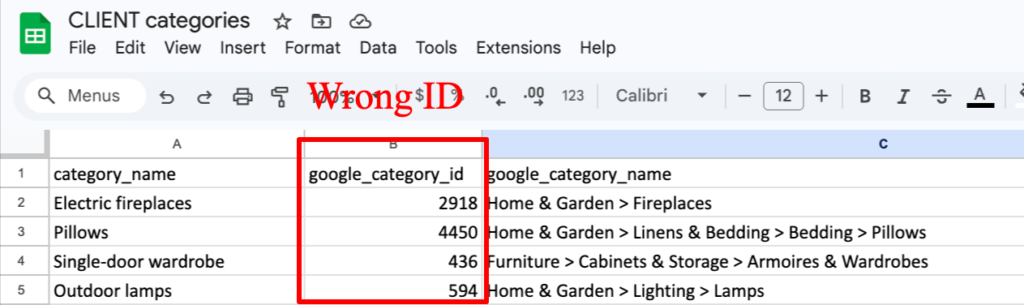
Note on Google categories: in this client’s setup, categories are mapped at the source, not at the individual product level, but at the category level.
Subdivision file: CLIENT category | Google Category Taxonomy).
The categories in the client’s shared file were built around their ecommerce structure, which makes sense internally.
The problem was that the IDs in the file didn’t always match the official Google taxonomy IDs. https://www.google.com/basepages/producttype/taxonomy-with-ids.en-US.txt
Practical example on one category:
| Category | ID | Google Category Name | |
| Current | 1-door wardrobe | 436 | Furniture |
| Proposed | 1-door wardrobe | 4063 | Furniture > Cabinets & Storage > Armoires & Wardrobes |
The proposed configuration is more specific and, in my opinion, more effective on both Google Shopping and organic SERPs, because it provides a level of granularity that many competitors don’t take advantage of.
For example, around 500 products were disapproved because Google had associated them with tobacco-related products and equipment, but why does this happen?
As far as I know, if Google sees a generic or misplaced category being used, it assigns one of its own.
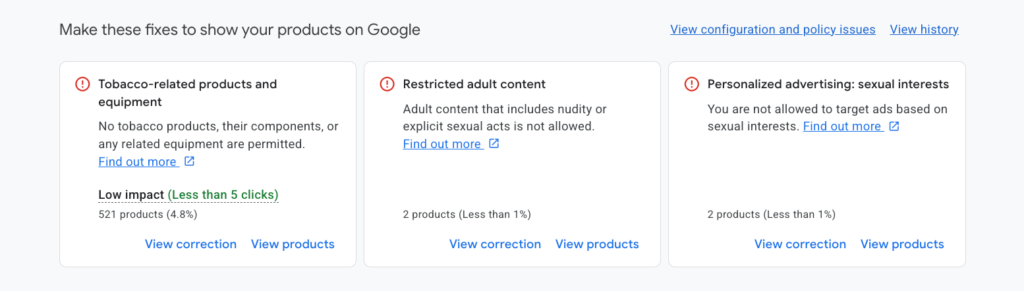
This correction should be applied at scale across all feed categories.
The most efficient approach is to combine the Google taxonomy file with the CLIENT Categories file to align each category with the corresponding official ID.
This can be done easily with Claude: just provide both files and ask it to suggest the most relevant Google category with its ID for each entry. Then verify that everything looks correct.
You can then upload the corrections via a supplemental feed directly to Google Merchant Center.
You don’t need to make any changes to your website or your management system; GMC reads the file and overwrites only the incorrect categories, leaving everything else unchanged.
TWO ACTIVE DATA SOURCES
We discovered that the client had two active data sources: the first is a Google data source that automatically scans the product feed, and the second is the client’s own data source (Excel file).
Having two data sources active simultaneously is dangerous.
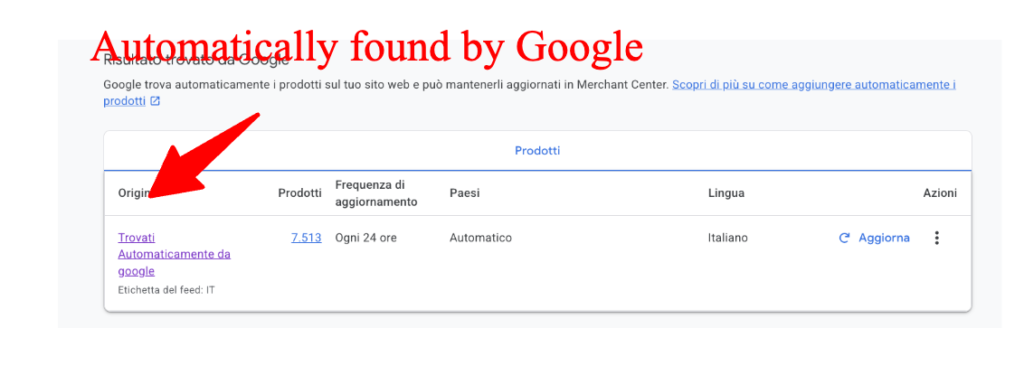
I covered this topic in more depth, if you want to go deeper, you can find a case study in the last part of the article.
In this case we deleted the first data source “automatically found by Google”, keeping our own.
I strongly advise checking this regularly across your ecommerce, it’s very dangerous.
PRODUCT DISAPPROVALS
It’s common for products to get disapproved in Google Merchant Center.
Many common problems:
- Unable to view the store on the computer
- Unable to view the store on mobile devices
- Product price mismatch
- Missing value [price]
…
My audit process typically is:
- Go in GMC > Products > Requires attention > you’ll see many problems
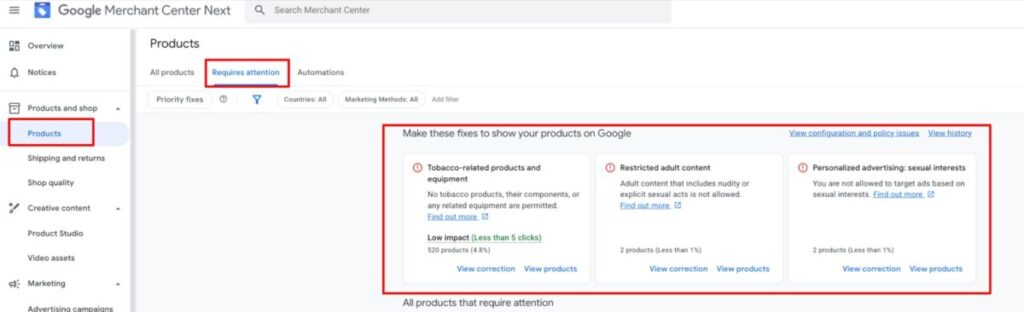
- Choose the specific problem and click on “View products” > Find out more.
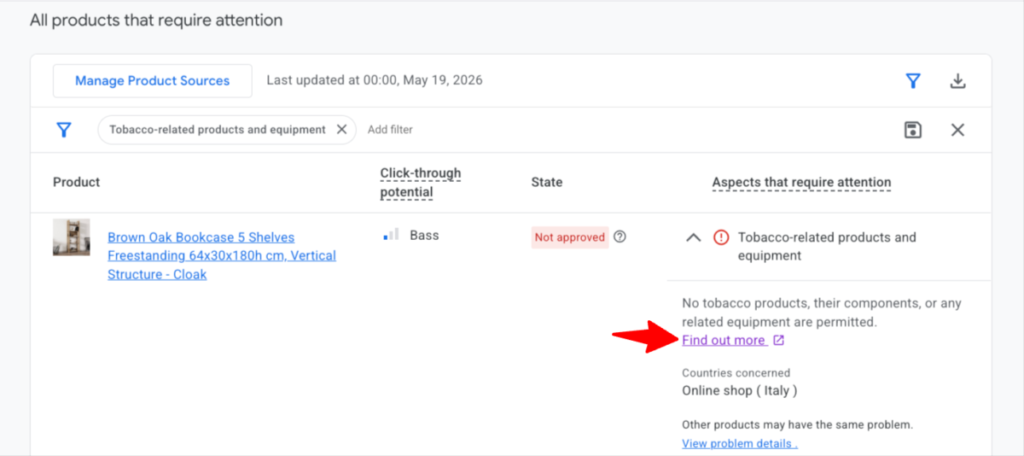
- Google has dedicated guides for each specific problem.
- You can also download all issues directly from GMC, import the CSV into Google Sheets, and get a full overview of every problem.
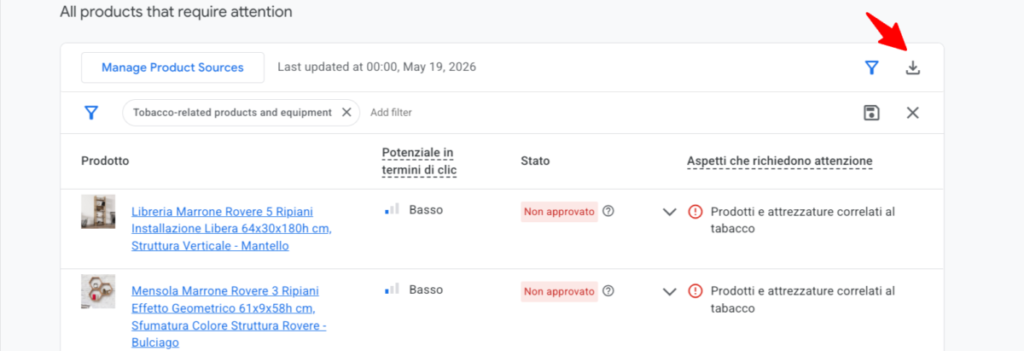

- Then, I categorize each individual issue in a file like this.

When I worked for this ecommerce client we had a bad situation on Google Merchant Center + more technical SEO problems.
We resolved 10,000+ product disapprovals, you can see the product disapproval rate (red line) dropping.
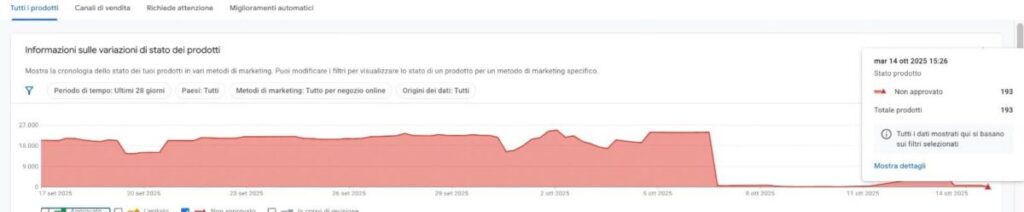
And here you can see product approvals increasing.
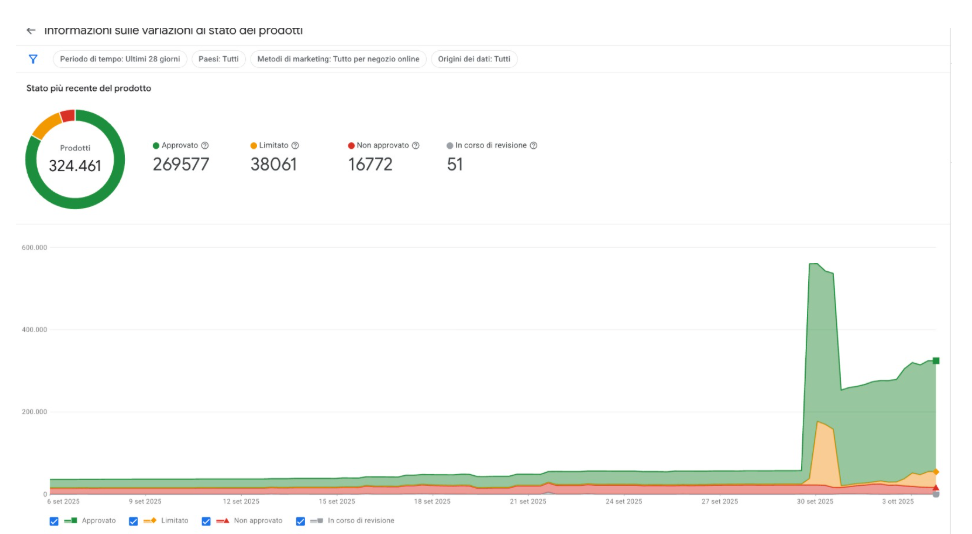
Thank you for the file I built. We resolved many errors.
Do you want it? You can contact me for a consultation.
GMC PRODUCT HEALTH CHECKLIST
This checklist is built on my experience working across different ecommerce catalogues.
Please double-check your technical SEO; as I discussed at BrightonSEO and in my case study, it can cause serious problems in Google Merchant Center.
HOW TO MONITOR GOOGLE MERCHANT CENTER
[Marco Giordano here, this part is written by me :3]
In order to properly monitor Google Merchant Center data, you need to store your data.
This section requires basic know-how of how BigQuery works and having the necessary permissions.
This is possible inside BigQuery with a Native Data Transfer:
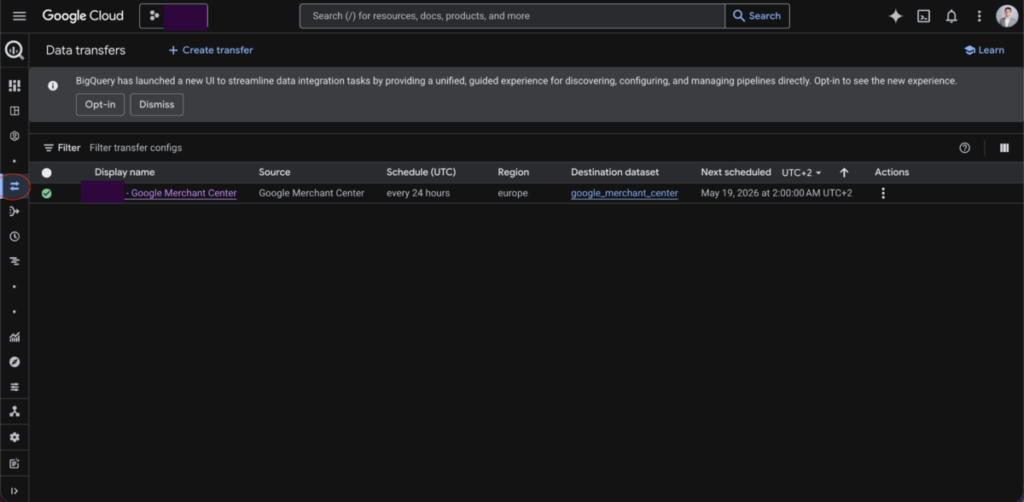
From this screen, you can click on “Create transfer” on the top left to start ingesting GMC data:
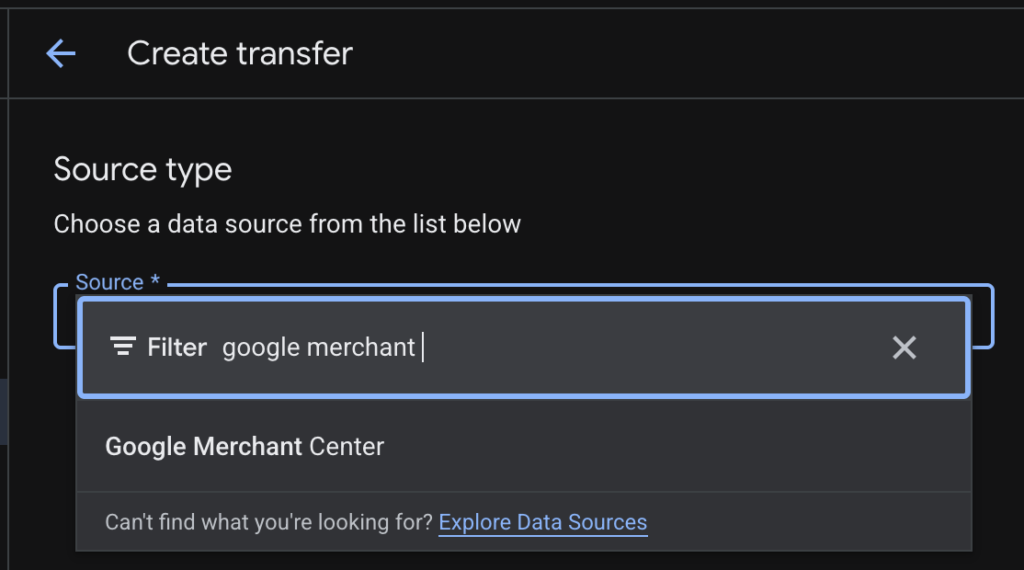
This is a completely different process from the traditional BigQuery exports for GA4 and GSC. In fact, you will get asked the specific settings of the ingestion:
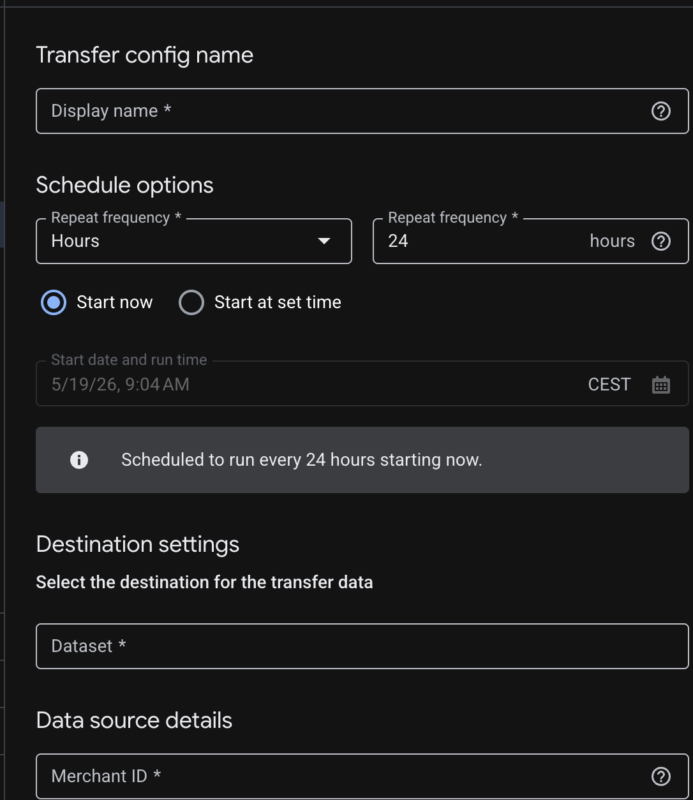
Display name: a name of your preference.
Schedule options: how often should the export run, you can leave it as default (daily). Leave “Start Now” so you actually get the data immediately.
As for the destination settings, you need to specify in which dataset you can store your data, as well as insert your Merchant ID from GMC.
(Which means you need to create an empty dataset first, so head over to BigQuery, click on your project name and go to “Create dataset” from the 3 dots).
Give it any name you want, even though I recommend something simple like “google_merchant_center”.
Next, you need to tell BigQuery which GMC data you would like to see. My advice is to select all of them:
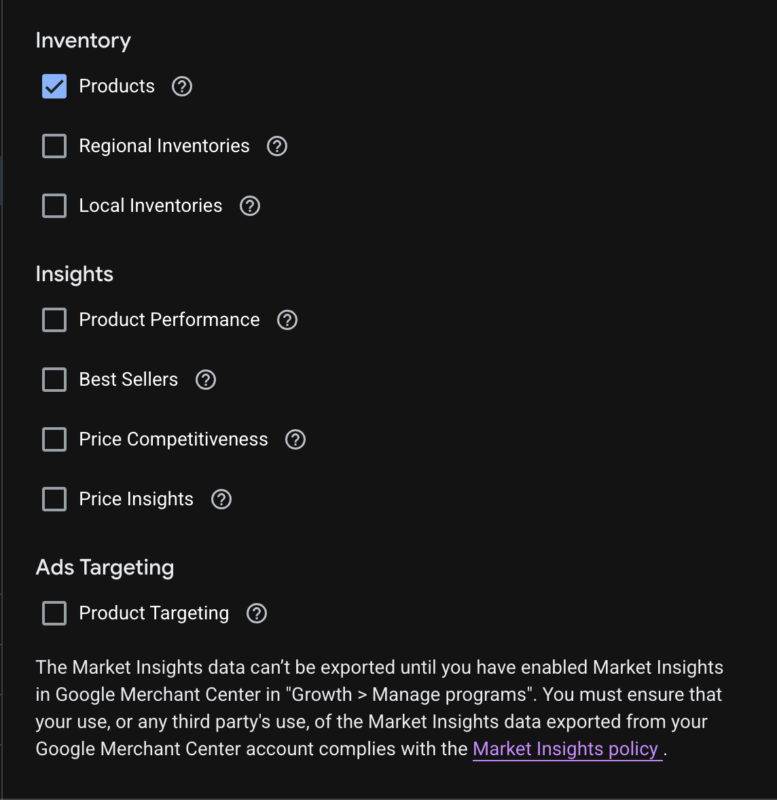
In my experience, the most useful are:
- Products (for clear reasons)
- Product Performance
- Price Competitiveness
- Price Insights
Once you are done, you can scroll to the very bottom and save.
The transfer will run and once finished should appear with a green tick:
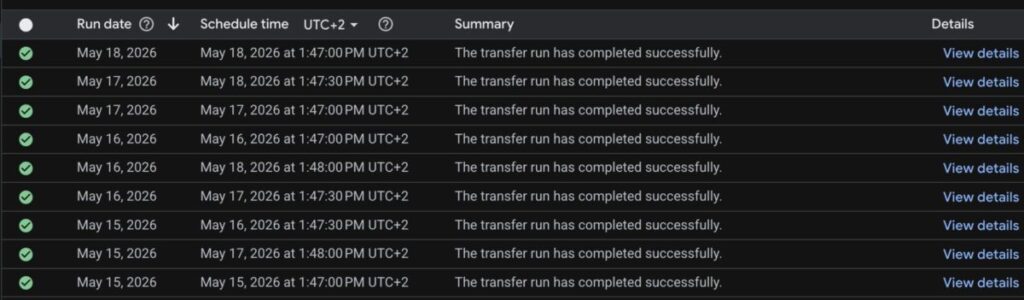
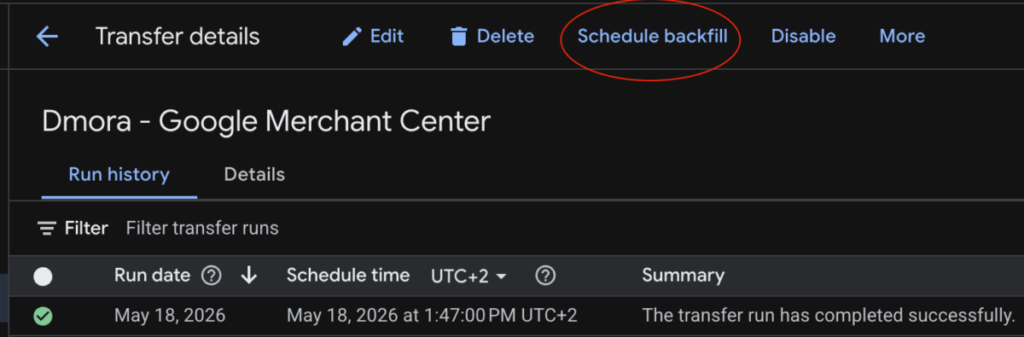
If you look more carefully, you can also notice you have the option to schedule backfills, aka retrieve historical data:
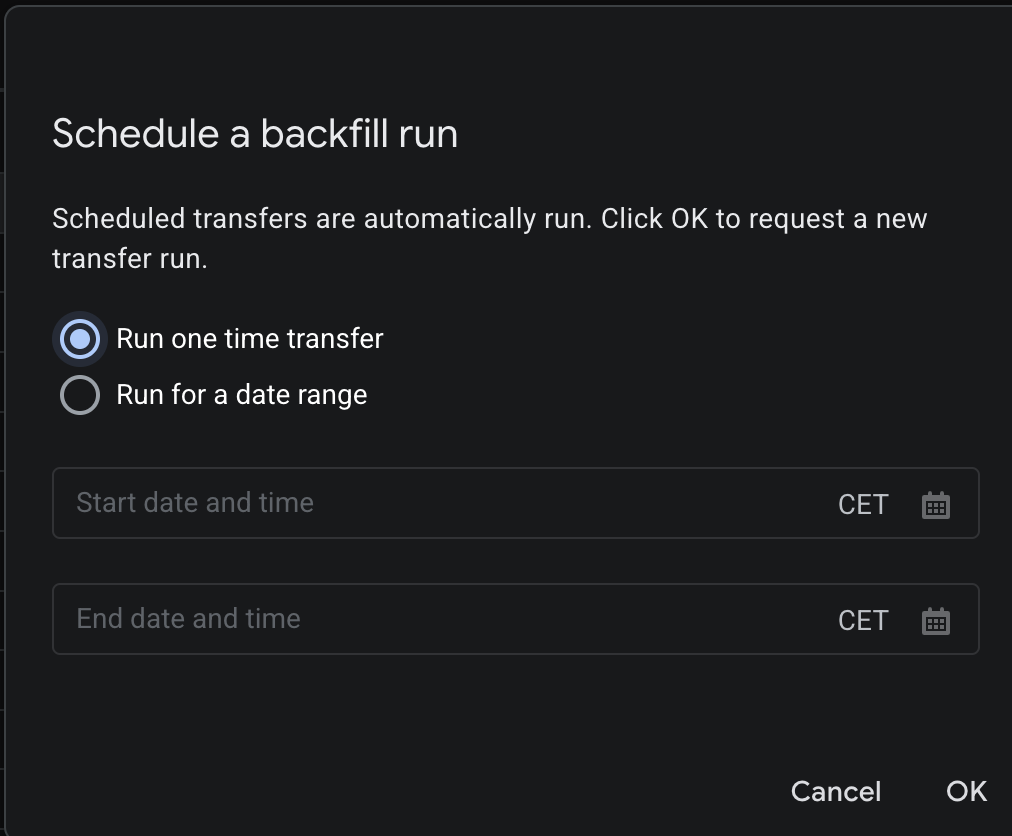
You can pick (almost) any timeframe you want for the backfill, as shown below:
Once you have the data, you can head over to BigQuery to see something like this:
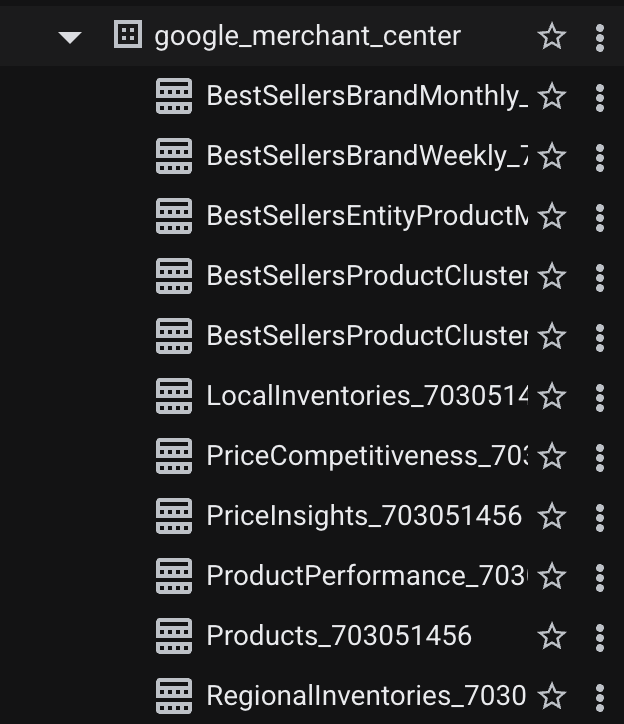
The data you see there should be the same as GMC.
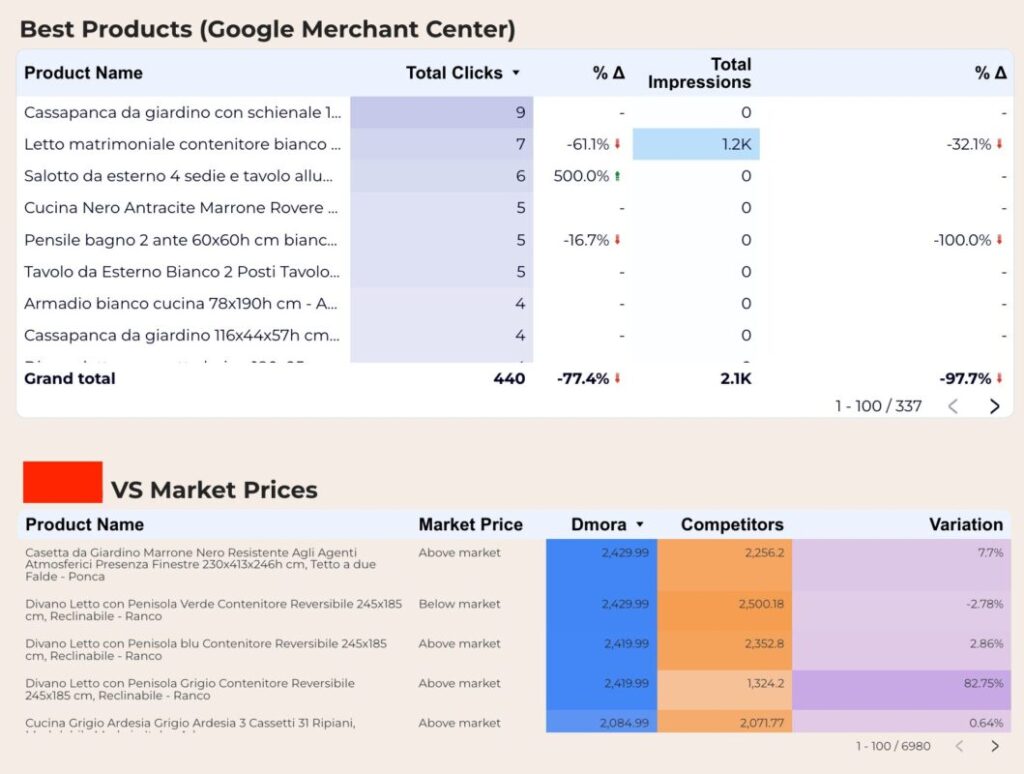
This allows you to connect to Data Studio and create a dashboard like:
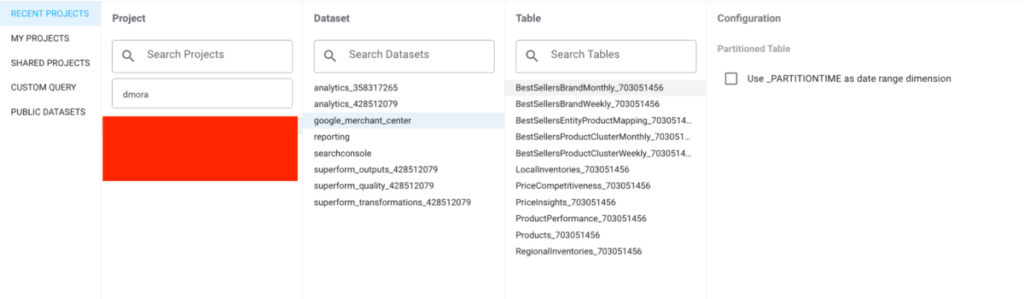
But first, in order to connect to Data Studio, you need to select “Google BigQuery” as a connector:
However, with the current implementation, I noticed that the data is off by 1 day, so I had to use a simple Dataform trick to make the data correct.
You can DM me on LinkedIn for further details or more technicalities.
Want a quick overview of your Google Merchant Center health?
I’ll show you where your biggest issues are, what to fix first, and how to monitor progress.
My services are highly personalised to each client.
Some services I offer:
- Get found in AI answers
- Customer offer
- SEO Testing Partnership
- One-off focused session
- Ecommerce audit
- Ecommerce SEO 1:1 mentorship
- Ecommerce SEO Retainer
- Shopify Organic Growth
Resources
How I Fixed 10.000+ GMC Product Disapprovals: An International Ecommerce Case / BrightonSEO slides